What Do the Numbers on a Geek Bar Mean? How to Read the Screen

The 2 numbers on a Geek Bar screen are percentages. The number next to the lightning bolt is the battery left, and the number next to the droplet is the e-liquid (the nicotine liquid) left.
They are not puff counts. This guide explains each readout, which one is the "bottom number," what the lights and animations mean in each mode, what 0 or 00 means, and how the screen differs on the Pulse, Pulse X and newer Pulse 2 models.
Quick answer
- Lightning bolt number: battery left, in percent. It goes up when you charge.
- Droplet number: e-liquid left, in percent. It only goes down. Charging does not change it.
- Bottom number: on the Pulse X, Pulse 2 and Pulse X 2, reviewers say it is the e-liquid level. Check the icon to be sure on your model.
- Rocket or orange/red lights: Pulse mode (the high-power setting). Green lights mean Regular mode.
- 0 or 00 by the droplet: the device reads the liquid as used up. 0 by the lightning bolt means it needs a charge.
How to read a Geek Bar Pulse screen
Geek Bar says the Pulse screen lets you "stay in control" of your "battery and E-juice capacities." The screen has no buttons and no menu. It wakes up when you inhale or plug in a charger, and Vaping360 reports it "turns off seconds after your hit is over."
To read it, look for the 2 icons first, then read the number beside each one:
| What you see | What it means |
|---|---|
| Lightning bolt + number (for example 72) | 72% battery left |
| Droplet + number (for example 45) | About 45% e-liquid left, as estimated by the device |
| Rocket icon, red or orange light | Pulse mode is on |
| Dashed circle or calm graphic, green light | Regular mode is on |
| Animation while plugged in | The device is charging |
| Dark screen | The device is resting, set to Close, or the battery is flat |
If you are new to the device, our guide on how to use a Geek Bar Pulse covers the switch, the draw and the first charge.
What does the bottom number on a Geek Bar mean?
On most current Pulse models, the bottom number is the e-liquid level. Reviews describe the layout this way:
- Pulse X: Versed Vaper says the battery percentage is "near the top of the screen" with a lightning bolt, and the e-juice percentage is "towards the bottom" with a droplet.
- Pulse 2: Versed Vaper says the battery gauge and percentage sit at the top, and the e-juice gauge and percentage sit at the bottom.
- Pulse X 2: Versed Vaper says the front shows battery "at the top" and e-juice "at the bottom," with a Pulse X logo in the middle.
For the original Pulse, reviews confirm the screen shows battery and e-liquid with droplet and lightning bolt icons, but we could not confirm a fixed top and bottom position from a source we trust. So the safe rule on any model is: do not go by position, go by the icon. The droplet is always liquid, and the lightning bolt is always battery.
Tip: An easy test: plug the device in. The number that starts to climb is the battery. The one that stays the same is the e-liquid.
Is the number on a Geek Bar the puff count?
No, not on the models we checked. Geek Bar's own Pulse page only says the screen shows battery and e-juice. Detailed hands-on reviews of the Pulse, Pulse X, Pulse 2 and Pulse X 2 describe the same 2 percentages and no puff counter.
A few retailer and review pages say the screen shows a "puff count." We could not match that to Geek Bar's page or to the reviews that describe the screen in detail, so we do not treat it as fact. If your device seems to show a third number, check the box or the store listing for that exact model.
The puff numbers on the box (for example 15,000 for the Pulse in Regular mode) are lab claims from Geek Bar, not a live count on the screen.
What do the lights, rocket and animations mean?
The pictures on the screen mostly tell you which mode you are in. You pick the mode with the 3-position switch on the bottom: Close (off and locked), Regular, or Pulse. The screen does not control the mode. It only shows it.
| Model | Regular mode | Pulse mode | Source |
|---|---|---|---|
| Pulse | Dashed circle, green light around the edge | Rocket icon, red light around the edge | Vaping360 review |
| Pulse X | Twinkling stars | Stars join into a constellation, X in the center circle | Versed Vaper review |
| Pulse 2 | Planet, green light bars | Planet with stars, orange light bars | Versed Vaper and Vaping360 reviews |
| Pulse X 2 | Falling stars, green light bars | Planet with more falling stars, orange light bars | Versed Vaper review |
Pulse mode is the stronger setting. It uses more power and opens an extra air hole, so the battery and e-liquid numbers fall faster than in Regular mode. Our guide on Regular vs Pulse mode explains the difference in detail.
Geek Bar also says the Pulse screen shows "different cosmic-style animations" during vaping and charging. These are decoration. They do not carry extra numbers or warnings that we could find.
How to read a Geek Bar Pulse X screen
The Pulse X has what Geek Bar calls the "World's First 3D Curved Screen" and a "Star UI," a starry screen with "dots of light." The 2 readouts work the same as on the Pulse: battery with a lightning bolt near the top, e-liquid with a droplet near the bottom.
The circle of tiny stars between them is the mode sign. In Pulse mode, lines link the stars into a constellation and an X appears inside the circle. That X is also part of the name: "Pulse X" is the model, not a hidden code. Versed Vaper says every Pulse X flavor shows the same constellation.
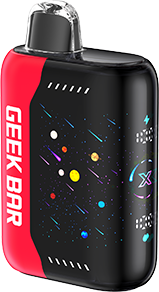
For what the star and rocket symbols mean on special editions, see our guide to Geek Bar zodiac and rocket signs.
What do the Pulse 2 and Pulse X 2 screens show?
The newer models keep the same 2 readouts but change the look. Geek Bar calls the Pulse 2 screen a "Dome Full Screen." Vaping360 says the screen sits inside a clear casing that sticks out about 11 mm from the body, and that the battery meter moves in 1% steps.
Both newer models add 2 LED light bars around the screen. These bars show the mode, not the battery: green in Regular and orange in Pulse. Versed Vaper even says it would have liked the bars to show battery life instead. So if you see orange, think "Pulse mode," not "low battery."
On the Pulse X 2, Versed Vaper says the screen wraps around most of the device, so the sides light up too. That is why some people ask what the side of their Geek Bar means. It is the same mode lighting, not a separate gauge.
What does 0 or 00 mean on a Geek Bar?
First check which icon the 0 sits next to.
- 0 next to the lightning bolt: the battery is flat. Charge it with a USB-C cable and the number will climb.
- 0 next to the droplet: the device estimates the liquid is used up. Charging will not bring it back.
- 00: Geek Bar does not explain this display. Next to the droplet, it most likely means the same 0% e-liquid shown with 2 digits. We could not confirm this from Geek Bar.
A device at 0% e-liquid may still give a few hits from liquid left in the wick. Once hits taste burnt, the coil is running dry and is heating the cotton, which can create harmful byproducts. Stop there. Our guide on what happens when a Geek Bar reads 0 explains the risks.
Some users and retailer guides also say a flashing battery icon means very low charge, and a flashing droplet means the liquid is nearly gone. Geek Bar does not publish an official list of screen signals, so treat these as common reports.
How accurate are the numbers?
The 2 numbers are not equally reliable.
Battery: a chip can measure the battery's voltage, so this number is a fair guide. We found no test of its accuracy, but reviewers did not report problems with it.
E-liquid: Geek Bar does not explain how this number is measured, and we found no test that checks it against the real liquid left. Our understanding is that it is most likely an estimate based on how much the coil has fired, but Geek Bar has not confirmed this. An estimate cannot see a leak or liquid stuck in the wick.
That is why the reading can be wrong both ways. It may say 0 while you still get normal hits, or show 10% while the hits already taste burnt. Trust the taste over the number.
Plenty of liquid on the screen but burnt hits is a warning sign. The device may be faulty or a fake. Fake Geek Bars can copy the screen but not the quality inside. Stop using it and check the security code on the box.
Can you change or turn off the Geek Bar screen?
No. There is no setting to change the layout, switch off the animations or turn off the screen lights. Vaping360 says you "can't turn off the screen lights" on the Pulse, and Versed Vaper wished for an option to turn off the starry display on both the Pulse X and Pulse X 2.
What you can change is the mode, with the switch on the bottom. Moving it changes the lights and graphics. Setting it to Close turns the device off, so the screen will not light when you draw. Close is also the best setting when you store it or carry it in a bag.
Why do the numbers drop so fast?
A few things make the numbers fall quicker than people expect:
- Pulse mode: higher power uses more battery and more liquid per puff.
- Long draws: the coil heats for as long as you inhale.
- Frequent use: more puffs per day means faster drops, even in Regular mode.
The battery number dropping is normal, since you will charge it several times before the liquid runs out. Geek Bar says the Pulse X can reach 80% battery in 20 minutes. If the e-liquid number drops very fast, it is worth slowing down, since that number also tracks the nicotine you take in. To plan around it, see how long a Geek Bar lasts.
For adults 21+ only. Geek Bar liquid is 5% nicotine, which is addictive. As of October 2026, no Geek Bar product has FDA authorization. If you want to quit, free help is available at Smokefree.gov or 1-800-QUIT-NOW.
FAQs
What does the top number on a Geek Bar mean?
On the Pulse X, Pulse 2 and Pulse X 2, the top number is the battery level in percent, shown with a lightning bolt.
Does the e-liquid number go up when I charge?
No. Charging only fills the battery. The e-liquid number only goes down.
What does Close mean on a Geek Bar?
Close is the off position on the bottom switch. The device will not fire, and the screen stays dark when you draw.
What setting should I keep my Geek Bar on?
Regular mode uses less power and liquid than Pulse mode. Set it to Close whenever you are not using it.
Why does my screen not light up?
The switch may be on Close or between positions, or the battery may be flat. Move the switch fully to Regular and charge it.
Do all Geek Bars have a screen?
No. Screens are a feature of the Pulse family and some newer models. Older and smaller Geek Bars may only have a small light or no display.
Is a Geek Bar with a different screen layout fake?
Not by itself, because layouts change between models. Use the scratch-off security code on the box to check, not the screen design.
The bottom line
The lightning bolt number is battery and the droplet number is e-liquid, both in percent. On the Pulse X, Pulse 2 and Pulse X 2, the bottom number is the e-liquid. The rocket, stars, planets and colored lights show the mode, not a level. A 0 by the droplet means the liquid is used up, and burnt hits mean it is time to stop, whatever the screen says.
Related Geek Bar guides
Sources: Geek Bar Pulse product page, Geek Bar Pulse X product page, Geek Bar security code page, Vaping360 Geek Bar Pulse review, Vaping360 Pulse 2 review, Versed Vaper Pulse X review, Versed Vaper Pulse 2 review, Versed Vaper Pulse X 2 review, American Cancer Society: What do we know about e-cigarettes, FDA: Tobacco 21, CDC: Health effects of vaping. VapeDecoded is not affiliated with Geek Bar.
Same problem on another device? See why vapes blink: light meanings for every brand.
Safety note: Our guides are for general information only. Stop using any device that gets hot, swells, smells like burning plastic or leaks from the battery. Read our disclaimer.
Image credits: Product images on this page belong to their respective brands and are used for identification and education only. If you own an image and want it removed or credited, send us a request and we will act on it within 48 hours.